An app, its category and pins
Give your module a good Apps row: a job name, an icon, a category, an entry page and a settings page.
Apps (light/apps/index) lists every installed module that has screens or settings, one row per app, grouped by the job it does. The merchant finds an app by searching the page or the palette, and pins the apps they use every day to the bottom of the navigation. This recipe gives your module a good row: a name, an icon, a category, an entry page and a settings page.
When to use it
- Every module with a screen or a setting gets an Apps row, even without any of this: Light detects it from its
menu.xml,system.xmlandcomposer.json(What detection does). Describe it when the detected row is poor: a vendor name as label, category "Other", a "(general settings)" row your module should not fold into, or a stock "Configuration" screen next to your Light settings page. - Declare an app when your module has a Light entry page but no
menu.xmlorsystem.xmlfor Light to find. - Don't add an Apps category for one module, and don't pin your app by default: the merchant decides what sits in the bottom navigation (Built for Light, rule 1 and rule 5).
How Apps finds your module
Apps reads what Magento already knows about each module once, keeps it in the config cache, and applies the descriptors and claims of the pools below on every request. The server writes the rows; the browser searches, filters and regroups them without another request:
The palette (Cmd-K and the top-bar Search) asks the same AppMatcher, so a word that finds an app on the page finds it in the palette too.
What detection does
Without a descriptor, Apps builds each row from the module's own files. A descriptor always wins over these rules: when a rule gets your module wrong, describe it (step 1) instead of renaming things to suit the rule.
| What | How Apps decides |
|---|---|
| Name | The descriptor's label, else the label of the module's first own config section, else a payment or carrier group it adds, else its own top-level menu item, else its first enabled screen, else the module name made readable (AdminActivityLog reads "Admin activity log"). Labels that name no app (Configuration, Settings, General, Information, Advanced and their Dutch and German forms) are skipped, and a tail such as " - Settings" is cut. A screen that its own config switches off names nothing |
| Developer | The pool app_vendors (step 3) by module name, then by vendor prefix, else the label of the config tab the settings sit under when the tab id starts the vendor prefix ("Acme Extensions" reads "Acme"), else the vendor prefix |
| Category | The descriptor's category, else payments or shipping for a payment or carrier group, else the stock menu item its enabled screens sit under, else a whole word of the module name, package, sections, tab or composer keywords ("blog" is Content, "smtp" is Marketing; "log" never matches "catalog"), else other |
| Description | The descriptor's description, else the composer description, shortened: "for Magento 2" and the like stripped, the first sentence, at most 140 characters, and nothing when it only repeats the name. The full text stays searchable |
| Settings | Every config section and group the module declares, including those its system.xml pulls in with <include path="Vendor_Module::system/file.xml"/> |
| Base modules | A module named *_Core, *_Base or *_Community with settings and no screen becomes one "Acme (general settings)" row per developer, sorted last among that developer's apps. A second base module of the same developer folds into that row. So does a short list of known vendor base modules that don't carry those suffixes (today Magefan_AdminUserGuide) |
| Add-ons | A module that only adds groups to another app's config section, with no screen and no section of its own, folds into that app. A pin or hide stored under the add-on still finds the app |
| Adds to | A module whose only part in the admin is a layout or UI component of a stock page (the order page, the product form and the like) gets a row that says "Adds to the order page in the advanced view" |
| Dropped | Upsell and info entries: menu items that open a marketplace, extensions/index, documentation or a user guide, items titled "More Acme Extensions", "User guides" or "Get support", demo icon lists, the config sections amasty_products and amasty_get_support, and sections or groups whose id ends in _feature_request, _extensions_link or _support_link. The Amasty ids come from older public copies and are unverified. A menu item that links to the stock configuration is dropped too: the row's settings open it already |
A descriptor with a label or an entry_route makes the module an app of its own, so it never folds into a "(general settings)" row or into another app. bin/magento mrx:apps:audit --module=<Module> shows what the scan found.
Steps
All items go in your module's etc/adminhtml/di.xml, on Mrx\Apps\Model\Registry.
1. Describe the app
The pool apps is keyed by module name. The pilot gives its module a job name, a category and an icon:
<item name="Disrex_RequestAnAccount" xsi:type="array">
    <item name="label" xsi:type="string" translate="true">Account requests</item>
    <item name="category" xsi:type="string">customers</item>
    <item name="icon" xsi:type="string">users</item>
The category is one of the core categories: orders, products, customers, content, marketing, payments, shipping, reports, system or other.
Prop
Type
2. Point the stock screens at your Light pages
A claim (pool app_claims) ties the module's stock menu items to your Light nav item, so the row opens the Light page. It takes module, menu_ids, config_sections, mode (replace or hide), nav_key or route, and settings_route. mode hide drops a stock menu item from the row, here the stock "Configuration" screen that the Light settings page replaces:
<item name="account_requests_config" xsi:type="array">
    <item name="module" xsi:type="string">Disrex_RequestAnAccount</item>
    <item name="menu_ids" xsi:type="array">
        <item name="config" xsi:type="string">Disrex_RequestAnAccount::disrex_registration_config</item>
    </item>
    <item name="mode" xsi:type="string">hide</item>
</item>
Prop
Type
3. Hide modules that are not apps
A library or a base module the merchant never opens goes in hidden_modules (pool app_hidden); a value ending in * hides every module with that prefix. The pilot hides Disrex_Core; Light's own -hyva module hides Hyvä's storefront modules:
<item name="Hyva_Theme" xsi:type="string">Hyva_Theme</item>A base module that holds only your shared settings is no app of its own either: Apps puts it in a "(general settings)" row by itself (What detection does), so hide it only when the merchant never needs those settings.
The developer's name on a row comes from the pool app_vendors, else from your config tab's label, else from the vendor prefix; map the prefix when it reads badly. An item named after one module wins over its prefix, and an empty one shows no maker for that app at all: a pack that presents another vendor's module as part of the shop keeps that vendor's name off the Apps page and the palette. The rate table pack does this for MatrixRate: its vendors argument holds <item name="WebShopApps_MatrixRate" xsi:type="string"></item>. Group by Developer groups the rows by that name; apps without a maker go under "Other developers". A descriptor's labels maps a menu id, a section id or section/group to a plain label; the stock title stays searchable.
4. Declare an app with an entry page
A module without menu.xml or system.xml declares its app with entry_route, and settings_page when it has a Light settings page. The pattern-B example also names badge, a nav item key, so its pin shows the nav item's count:
<item name="entry_route" xsi:type="string">light/hello/index</item>5. Categories and default pins
A module can add an Apps category (pool app_categories) and a default pin (pool app_pins, the argument pinned_by_default). Both exist for an agency that sets up one shop, in its own per-client module. An app or a bridge adds neither. Acme_LightProof uses both only to prove they work, and its di.xml says so:
<item name="b2b" xsi:type="array">
    <item name="label" xsi:type="string" translate="true">B2B</item>
    <item name="sort_order" xsi:type="number">35</item>
</item>
A default pin is offered once to every admin, including admins who already pinned something. When an admin unpins it, it stays unpinned.
How a pin works
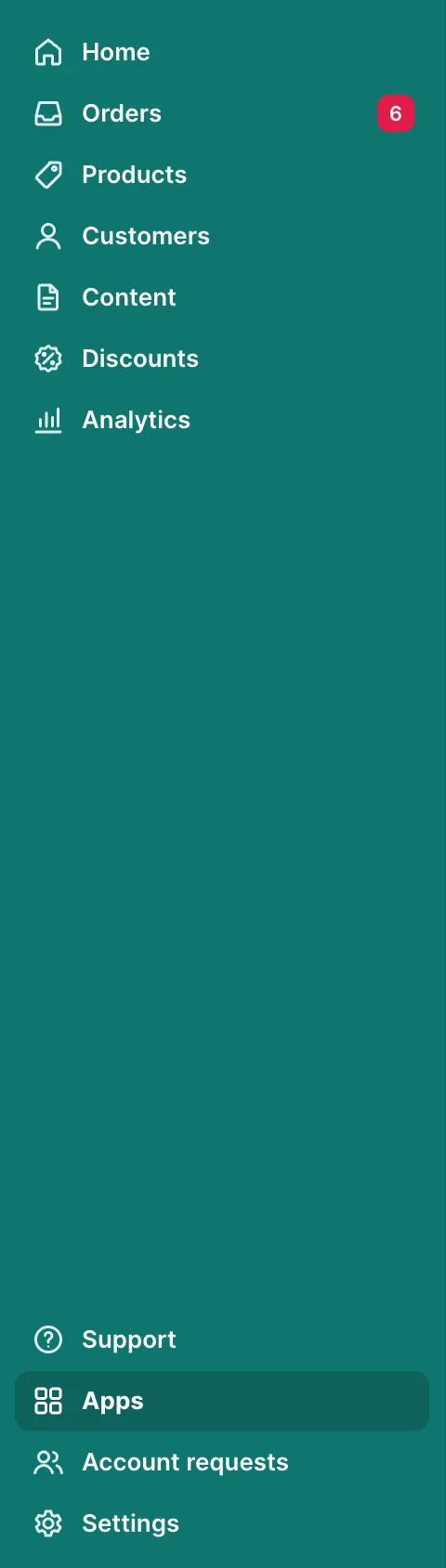
A pin is a preference of one admin, kept in admin_user.extra. The admin pins a whole app with the pin on its row (or Pin to menu in the row's menu), or one screen or setting of it with the pin button beside that line in the open row. The bottom navigation draws every pin on every page, apps first, with the count of the nav item behind it:
What the admin sees
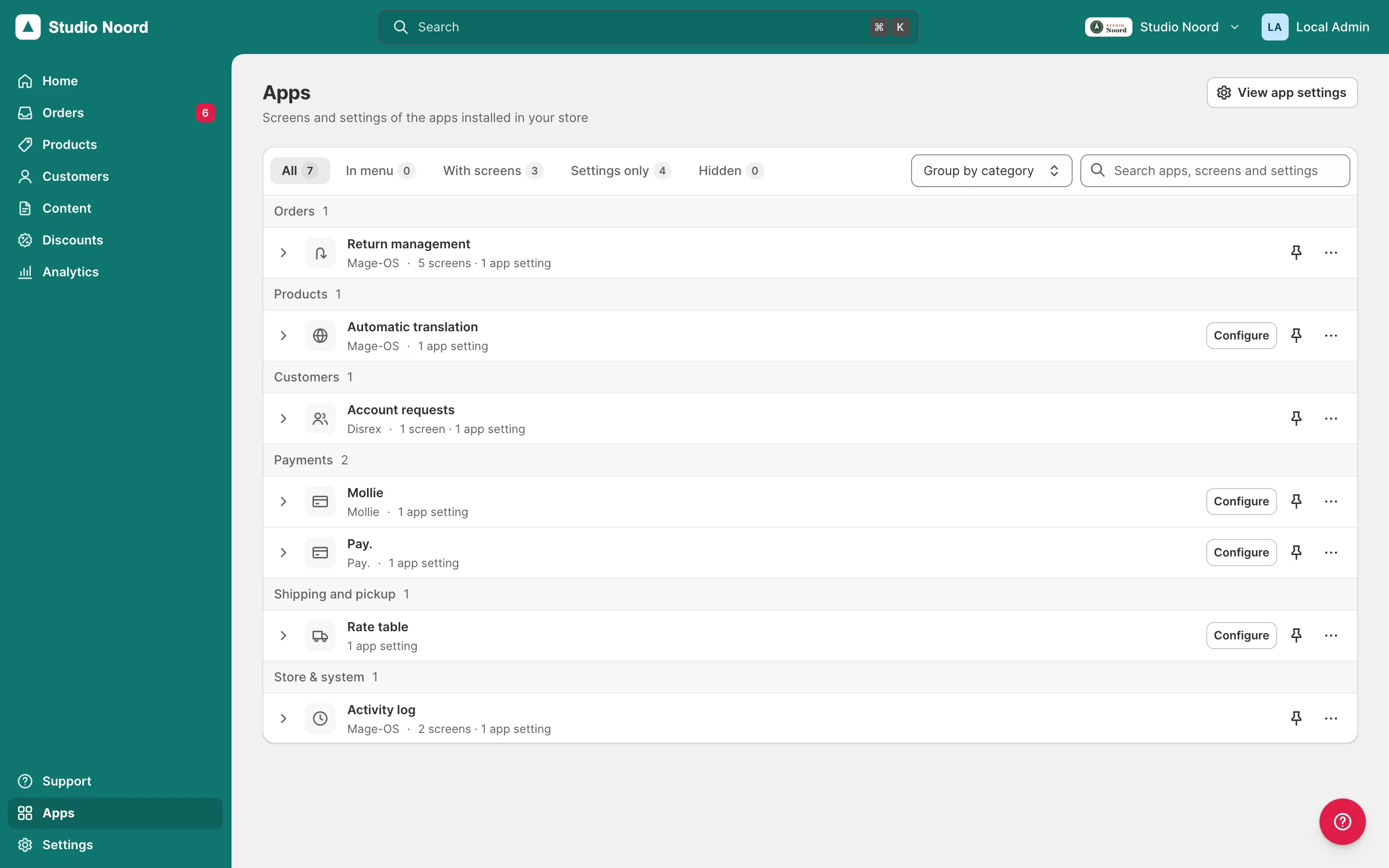
- Rows. Each app is one row: its icon, name, developer and how many screens and settings it has, an In menu or Hidden badge, a main button when one page says it all (Open for the app's Light entry page or its only screen, Configure for its only setting), the pin and a menu with Pin to menu and Hide app. The row opens in place on the description, the "Adds to" lines, and every screen and setting with where it opens and a pin of its own. With 4 apps or fewer every row starts open. Rows open without JavaScript too.
- Tabs and Group by. The page is one card like Orders: the tabs All, In menu, With screens, Settings only and Hidden, each with its count, then a Group by select and the search field; a hidden app keeps working and waits under Hidden. A tab without apps says so ("No hidden apps"). Group by category (the default), developer (developers with one app share "Other developers", a "(general settings)" row comes last in its group) or no groups (A–Z). Each admin's choice is kept with their pins.
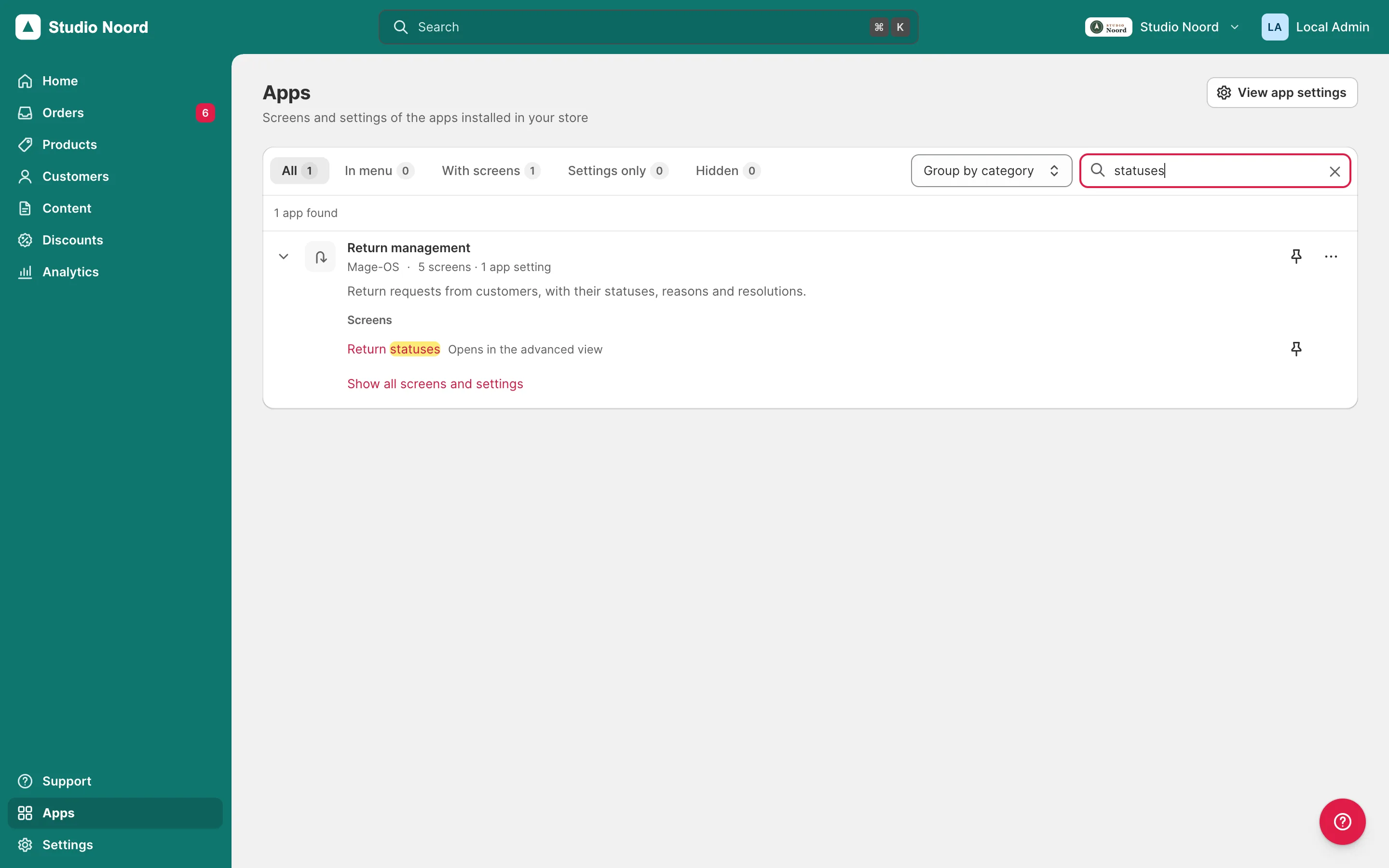
- Search. The field searches the name, developer, module, package, composer keywords and description, the screen and setting titles in the admin's language and in English, the category, the "Adds to" pages, and job words such as cart, payment, shipping, newsletter, customer, order, invoice and settings in the admin's language. Every word must match; case, accents, hyphens and apostrophes don't count ("e-mail" finds "Email", "mage-os" finds "Mage-OS"), and any other punctuation counts as a space. In a composer package the hyphens split its parts into words:
acme/module-maileris found by "module mailer" or by the package pasted whole, not by "email". While searching, the rows form one ranked list (name matches first) and a row found by one of its screens or settings opens on just those, with "Show all screens and settings". Hidden apps match too, last and with their badge. - Links.
light/apps/index?q=<words>opens the page with that search,&tab=on a tab (menu,screens,settingsorhidden; All when left out) and&group=grouped bycategory,developerorazfor that visit (the admin's own choice stays as it is), andlight/apps/index#app-<key>opens and focuses one app's row; the key is the module name in lower case with dashes, such as#app-mageos-adminactivitylog. An unknown key becomes a search for its words, and a value the page doesn't offer is left out. The address keeps the search and the tab while the admin works. Settings > Apps (light/apps/settings) has the same search over the settings alone. Opened from the Apps page ("View app settings" adds?from=appsand the page's search, tab and grouping asfrom_q,from_tabandfrom_group), its back arrow returns to Apps as it was left; opened from Settings or directly, it returns to Settings. - Palette. An app found by its name, developer or words is an App result ("App · Acme") that opens its row, followed by its matching screens and settings; at most 2 of its other entries come along, so the ones that match still fit. "settings acme" or "configure acme" finds the app's settings. When more matched than the palette shows, the last result is "Show all N results in Apps", which opens the page with the same search.
- Pins and the way back. A pinned app is its own item in the bottom navigation, between Apps and Settings, with the count of its nav item, and it is the active item on its screens. A pinned screen or setting follows the pinned apps and opens that one page. When two visible apps share a name, a pin adds the developer: "Blog (Acme)". On one of the app's stock screens, the advanced-view banner names the app, and Back to Apps opens the app's row, also when the admin came from that row; from another Light page the link leads back to that page.
- Recently opened. The last apps the admin opened from the page show as chips above the rows, kept per browser.
- Advanced mode. The stock menu, as before. Apps is a Light page and is reached from simple mode.
ACL
- A row shows only the screens and settings the admin may open: each claimed menu item keeps its own ACL resource. An app with nothing left for the admin has no row, no search words in the page and no palette result.
- A pin whose app is gone, or which the admin may no longer open, disappears. So does a pinned screen the admin's role may not open.
- Write
menu.xmlactions with the route id (adminhtml/..., not the front nameadmin/...). Apps resolves a front name the way the stock menu does, so both work, but other code that builds a URL from your action may not.
Check it
bin/magento mrx:apps:audit --module=<Module>shows the category, the claims and the hidden menu items.bin/magento mrx:light:doctor --module=<your module>:app_categorywarns about an unknown category, andunknown_keyabout a misspelled key.- Search the Apps page and the palette for your app's name and for a word of one of its settings: both must find it.
tests/playwright/pilot-request-an-account.spec.tschecks the row, andtests/playwright/light-proof.spec.tsthe category and the default pin.
Pitfalls
- A claim or descriptor in
etc/di.xmlinstead ofetc/adminhtml/di.xmlreplaces nothing and shows nothing: the doctor reportswrong_area. - A declared app without
entry_routehas no row to open. - A change to your
menu.xml,system.xmlorcomposer.json(a new description or keyword) shows only afterbin/magento cache:clean config: the scan is cached per set of modules and their setup versions. - A section named like a generic label ("General", "Settings") gives your app no name, so Apps falls back to the next rule. Give the section a real name or describe the app.
Last updated on